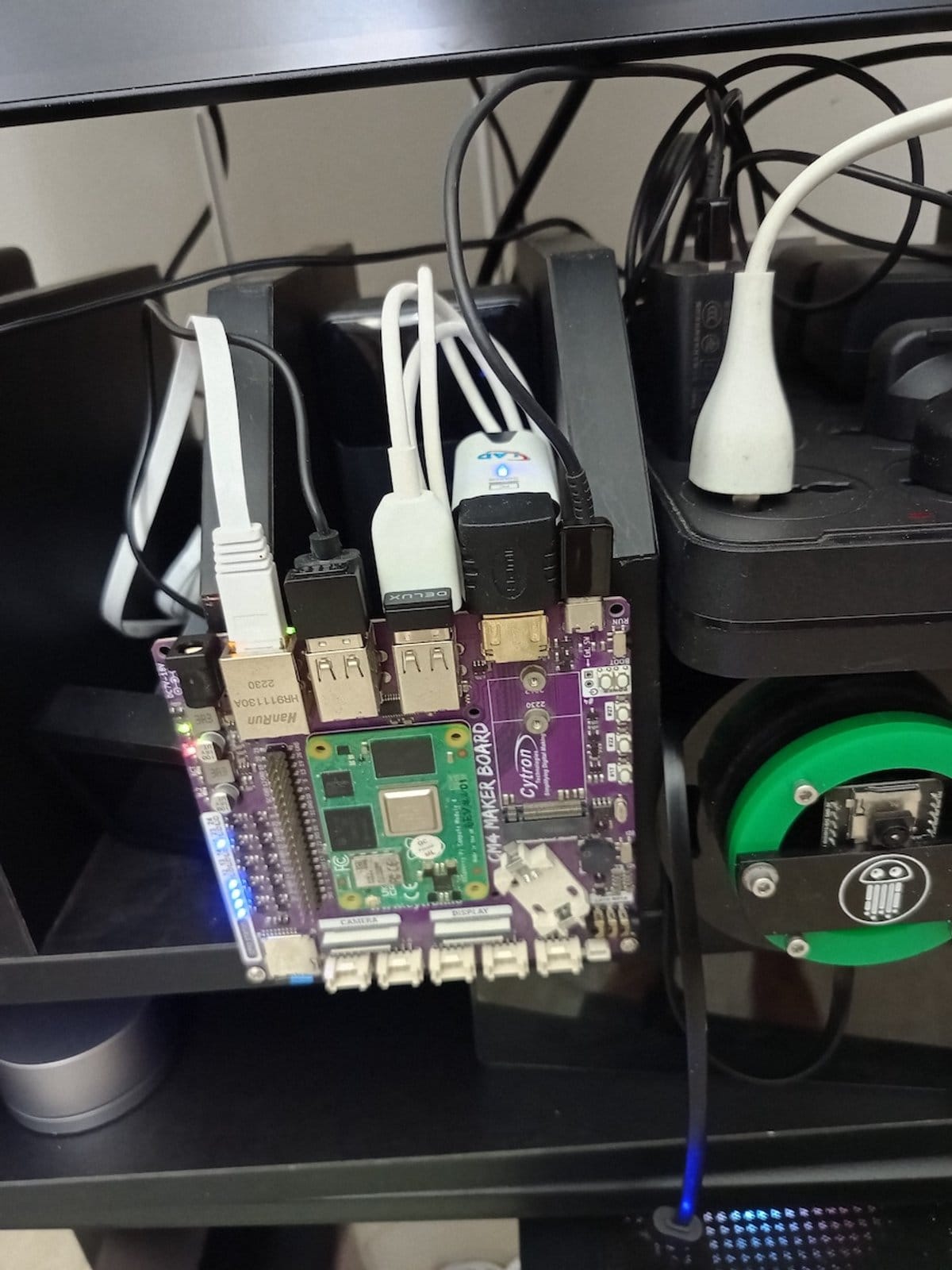
When I tell people about our HomeLab setup at Alpha Bits, the first question is usually "Why don't you just use a single powerful server?" It's a fair question, and it took me months of experimenting to answer it properly.
The short answer is that different workloads have different needs, and a distributed HomeLab lets you match each job to the right hardware. This post covers how we choose hardware, the devices we use, and the lessons that shaped the current setup.
PC or embedded systems
Every HomeLab builder has to choose between a traditional PC or server and single-board computers (SBCs) and other embedded systems.
I've tried both a lot, and we ended up using both, each for the jobs it suits.
A traditional PC or server
Pros:
- A proper CPU and GPU are the fastest option for compute-heavy tasks.
- You can fit 32GB, 64GB or more RAM for memory-hungry applications.
- Storage is flexible: multiple drives, RAID and NVMe speeds.
- PCIe slots take specialised cards and extra network interfaces.
- It's standard x86, so almost all software runs on it.
Cons:
- Even idle, a desktop PC draws 50-150W around the clock.
- Fans and cooling make it noisy, which is a problem in a living room.
- It costs more up front, especially with good components.
- Most home services don't need 16 cores and 64GB of RAM.
Embedded boards and SBCs
Pros:
- A Raspberry Pi 4 draws 3-5W under normal load.
- With no fans, they're silent and fit anywhere.
- Several specialised devices often cost less than one powerful server.
- If one device fails, the others keep running.
- You get experience with ARM, the architecture inside most mobile and IoT devices.
Cons:
- ARM processors have come a long way, but x86 still leads in raw compute.
- Most SBCs max out at 4-8GB of RAM.
- Some applications still have no ARM builds.
- More devices means more systems to maintain.
How we set up our hardware
After three years of experimenting, we settled on what I call the "hybrid distributed approach." This is the current setup and the reason for each choice.
Raspberry Pis as the base
Raspberry Pi 4 (8GB), the workhorses
Three Pi 4s are our main service nodes, and each has its own role:
- Pi-Main: CasaOS, the primary Docker host, web services
- Pi-Data: database services, backup coordination, monitoring
- Pi-Edge: IoT gateway, Node-RED, sensor data processing
We tested several SBCs, and no other board has an ecosystem as mature as the Pi's. The documentation is extensive, the community is helpful, and you can usually buy one when you need it (supply chain problems aside).
Raspberry Pi 400 for development
It might sound crazy, but I do a surprising amount of development work on a Pi 400. It's my "field laptop": I can SSH into any system, edit configurations, test deployments and even do light coding. With the keyboard built in, it's good for quick maintenance tasks.
Raspberry Pi CM4 modules for specialised jobs
We put CM4 modules on custom carrier boards for specific applications:
- Network-attached storage with several SATA connections
- An industrial IoT gateway with RS485 and CAN bus interfaces
- A digital signage controller for our office displays
With a CM4 we can build exactly what we need. The latest example is the Alpha Block, an educational robotics platform we designed from scratch. The CM4 runs the whole command centre: Node-RED for flow orchestration, MQTT for real-time communication with a swarm of three robot units, and a web dashboard for monitoring, all on a carrier board we designed ourselves. As I've said before, designing a PCB is like designing a house, wiring included, at miniature scale.
Orange Pi Zero boards for small services
The Orange Pi Zero boards (we use the Zero 2W and Zero 3) are where costs get really low. They run our "micro-services":
- DNS and DHCP: Pi-hole on a Zero 2W
- VPN gateway: a WireGuard endpoint on another Zero 2W
- Environmental monitoring: temperature, humidity and air quality sensors
- Backup coordination: lightweight backup scripts and monitoring
At $15-25 each, they handle single-purpose tasks well. They draw under 2W each, and replacing one that fails doesn't cost much.
I was sceptical about Orange Pi at first, because its documentation isn't as polished as Raspberry Pi's. Then our first Zero 2W ran Pi-hole without a hitch for eight months straight, drawing less power than a night light, and I changed my mind. Sometimes the simplest solution is the best one.
A dedicated Linux server with a GPU
For compute-heavy tasks we keep one traditional x86 server:
- AMD Ryzen 7 5700G (8 cores, 16 threads)
- 32GB DDR4 RAM
- NVIDIA RTX 3060 (12GB VRAM)
- 1TB NVMe SSD plus 4TB HDD storage
- Ubuntu Server 22.04 LTS
We use it for:
- Local LLM inference with Llama 2, Code Llama and other models
- AI development: training small models and computer vision experiments
- Video processing: transcoding, streaming and media server duties
- Development environments: heavy IDEs, compilation and testing
- Backups: it's the central storage for every other device
The server runs only when we need it and isn't part of our 24/7 infrastructure. The Pis handle daily operations, and we start the big server for specific tasks. That keeps the power bill reasonable and still gives us serious compute when we need it.
Sidebar: with the rise of AI-assisted development, the GPU server also runs local inference for coding tools when I want to avoid cloud API latency. A local model reviews code while my main IDE runs cloud-based AI agents, so neither track waits on the other.
Radxa Rock 3W for heavier ARM work
We use the Radxa Rock 3W for our most demanding ARM workloads. It has:
- An RK3568 processor that outperforms the Pi 4
- Up to 8GB of LPDDR4 RAM
- Built-in WiFi 6 and Bluetooth 5.0
- Several camera and display interfaces
Our Rock 3W runs the computer vision pipeline for our security cameras, does real-time image processing and backs up critical services. It sits between the Pi 4 and an x86 machine: faster than the Pi, and far less power-hungry than the x86.
What I'd do differently
Measure power from the start
I wish I'd bought a power meter earlier. Knowing what each device actually draws changed how I think about 24/7 services. A supposedly efficient mini PC that idles at 25W costs more in electricity per year than buying two Raspberry Pis.
Plan for failure from day one
SD cards will fail; the only question is when. I learned this the hard way when our main Pi's SD card died on a Sunday morning and took several services down with it. Now every critical service runs on at least two devices, and anything important lives on USB SSDs.
Get the network right
A distributed setup is only as good as the network connecting it. Buy a decent managed switch, plan your VLANs and monitor network performance. The networking post covers this in detail.
ARM software has caught up
Three years ago, finding ARM builds of software was frustrating. Today most major applications support ARM natively, and Docker makes the rest manageable, so ARM compatibility shouldn't hold you back.
What our setup cost
These are approximate costs, since prices change:
- 3x Raspberry Pi 4 (8GB): $75 × 3 = $225
- 1x Raspberry Pi 400: $70
- 2x CM4 modules + carriers: $150
- 4x Orange Pi Zero boards: $20 × 4 = $80
- 1x Radxa Rock 3W: $85
- Dedicated server components: $1,200
- Storage, cases, cables, etc.: $300
Total hardware cost: about $2,110.
A single high-end server with the same capabilities would cost more, and we also get redundancy, lower power use and more to learn from.
How to get started
If you're just starting:
- Begin with a single Raspberry Pi 4 (8GB) and get comfortable with Linux administration.
- Add an Orange Pi Zero to practise managing several devices and try single-purpose services.
- Measure power consumption and work out the yearly cost.
- Plan for growth: buy a managed switch and think about your network layout.
If you need serious compute:
- Start distributed anyway, and learn the concepts on low-power hardware.
- Add a dedicated server later, once you have a specific high-performance need.
- Look at used enterprise hardware. Older Xeon servers can be very cheap for what they do.
Next up: networking
The next post covers the network that ties all of this together: how ZeroTier, Cloudflare DNS and Cloudflare Tunnel give us a secure network that works from anywhere in the world.
It includes our configurations, the security considerations, and why the combination has made such a difference to our distributed setup.
If you're choosing between a single server and a distributed setup, start distributed. Even with only one Pi, designing for multiple nodes pays off when you grow.
Next up: "HomeLab Networking: ZeroTier + Cloudflare = NAT-Free Nirvana"